Monitoring & Troubleshooting
Health Check
Milestone exposes a health endpoint:
The Docker container includes a built-in health check that polls this endpoint every 30 seconds.
The response carries status, mode, version, backend, default_tenant, timestamp
and database. database is connected or, when the probe query fails, just error — the
endpoint is public, so the underlying driver error (host, port, user) is written to the
server log only. Look there for the cause.
Logging
View Application Logs
# Docker Compose
docker compose logs -f milestone

# Single container
docker logs -f milestone

# Last 100 lines
docker logs --tail 100 milestone
Log Levels
There is no LOG_LEVEL environment variable. Setting DEBUG=true enables debug-level behaviour (never use it in production); otherwise the application logs at uvicorn's default level.
Common Issues
Frontend changes not appearing
- Verify the frontend was built:
npm run build(infrontend/) - Verify it was deployed:
./deploy-react.sh - Hard refresh the browser:
Ctrl+Shift+R - Check files exist in
public/andpublic/assets/
API errors
# Check backend logs
docker logs milestone

# Test API endpoint
curl http://localhost:8485/health

# View API docs
open http://localhost:8485/api/docs
Container won't start
If the log ends with "SESSION_SECRET is empty or a published default. Refusing to start with
DEBUG=false", set SESSION_SECRET in .env to a fresh random value
(python -c "import secrets; print(secrets.token_hex(32))") and start again. With
docker-compose.fresh.yml, a missing value stops docker compose itself with
"Set SESSION_SECRET in .env". In single-tenant mode, changing SESSION_SECRET later means
re-entering the SSO client secret (see
Organization & SSO).
If the database initialisation (AUTO_INIT_DB=true) fails, the container now exits instead
of serving a half-initialised schema — fix the database error shown in the log and restart.
# Check logs for errors
docker compose logs

# Rebuild from scratch
docker compose down
docker compose up -d --build
Database connection issues
# Test connection from container
docker exec milestone python -c "from app.database import engine; print(engine.url)"

# Check environment variables
docker exec milestone env | grep DB

# Test PostgreSQL directly
psql -U milestone -h localhost -d milestone -c "SELECT 1;"
Tenant not accessible
- Verify the tenant exists and is active in the admin portal (status changes apply at once on the process that made them, within 60 seconds on others)
- Test the database connection from the admin portal — a workspace that answers "Could not connect to the organization database" or "Organization database is unavailable" (503) has a pool problem; the cause is in the server log
- Check that the URL matches the slug:
/t/{slug}/ - Check backend logs for connection errors
SSO login fails
- Verify Azure AD App Registration settings (client ID, tenant ID, secret)
- Check the redirect URI matches exactly
- Use the "Test Connection" button in SSO configuration
- Check browser developer tools for OAuth errors
- Verify the client secret hasn't expired
- "Your sign-in session expired or was started elsewhere" means the browser-binding
cookie (
sso_nonce) did not match — see SSO Login Flow
"Too many failed sign-in attempts"
Workspace and admin-portal sign-in refuse further attempts (HTTP 429, with a Retry-After
header) after 10 failures for the same e-mail from the same IP address within 15 minutes, and
for every e-mail after 100 failures from the same public IP address. Wait for the window to
pass, or restart the application to clear the in-memory counters. Behind a reverse proxy every
user appears to come from the proxy's address unless FORWARDED_ALLOW_IPS lists it (see
Installation → Reverse Proxy);
until then a user locked out this way is locked out from every computer.
WebSocket disconnections
WebSocket connections require proper proxy configuration:
- nginx: Set
proxy_http_version 1.1andConnection "upgrade"headers - Cloudflare: Enable WebSockets in the dashboard
- Load balancers: Enable sticky sessions or WebSocket support
- Connections closed immediately with code 4003 usually mean the
Origincheck failed: the proxy rewroteHostwithout settingX-Forwarded-Host, or the app is opened from an origin not listed inCORS_ORIGINS. (4003 is also used for a disabled user.) - Users see an Offline badge in the header while live updates are disconnected; the client reconnects by itself when the network returns or the tab becomes visible again
System Statistics (Multi-Tenant)
In multi-tenant mode, the admin portal includes a System Statistics panel showing platform-wide metrics:
| Metric | Description |
|---|---|
| Total Tenants | Count of all tenants by status (active, suspended, pending, archived) |
| Active Connection Pools | Number of database connection pools currently maintained by TenantManager |
| Total Connections | Sum of active database connections across all tenant pools |
| System Uptime | Time since the application process started |
| Memory Usage | Current memory consumption of the FastAPI process |
| Python Version | Runtime version for troubleshooting |
Access this panel from the admin portal at /admin/ — it appears on the main dashboard alongside the tenant list.
Tenant Audit Logging
Every administrative action on tenants is logged for accountability and compliance:
| Action | What's Logged |
|---|---|
| Tenant created | Tenant name, slug, who created it |
| Tenant provisioned | Database creation result, admin who triggered it |
| Tenant updated | Changed fields (name, slug, status), who made the change |
| Tenant suspended | Who suspended it and when |
| Tenant deleted | Who deleted it and when |
| Password reset | Who initiated the reset |
Viewing Audit Logs
- In the admin portal, open a tenant's details
- The Recent Activity section shows the most recent entries
- Each entry includes: timestamp, action type, actor (admin email), and details
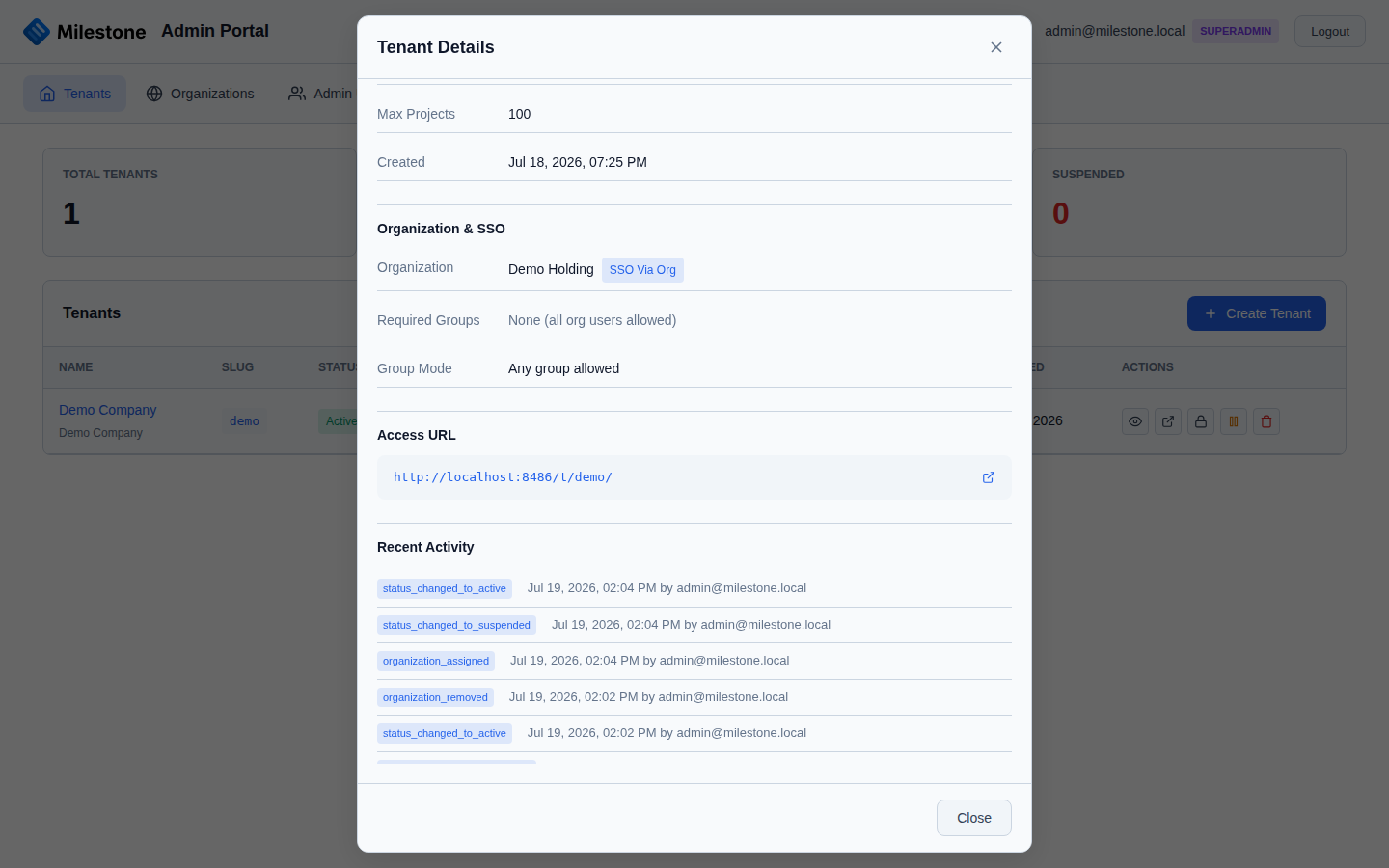
Audit logs are stored in the master database and persist even if a tenant is deleted.
Tip
Audit logs can also be retrieved via the API: GET /api/admin/tenants/{tenant_id}/audit
Performance
Database Optimization
# Check slow queries (PostgreSQL)
psql -U postgres -c "SELECT query, mean_exec_time, calls FROM pg_stat_statements ORDER BY mean_exec_time DESC LIMIT 10;"

# Analyze tables
psql -U milestone -d milestone -c "ANALYZE;"

# Check table sizes
psql -U milestone -d milestone -c "SELECT relname, pg_size_pretty(pg_total_relation_size(relid)) FROM pg_catalog.pg_statio_user_tables ORDER BY pg_total_relation_size(relid) DESC;"
Resource Limits
The Docker Compose configurations set resource limits:
- Memory: 1 GB limit, 256 MB reservation (app container,
docker-compose.yml) - PostgreSQL: 512 MB limit, 128 MB reservation (
docker-compose.fresh.ymlonly)
Adjust under deploy.resources in the compose file you deploy with, if needed.
Deployment Checklist
Before deploying to production:
- [ ] Set
SESSION_SECRETto a cryptographically random value (required — the server refuses to start withDEBUG=falseon an empty or example value) - [ ] Set
TENANT_ENCRYPTION_KEY(if multi-tenant) - [ ] Set
SECURE_COOKIES=true(when serving over HTTPS) - [ ] Set
DEBUG=false - [ ] Configure proper database credentials
- [ ] Set up SSL/TLS via reverse proxy
- [ ] Configure automated database backups
- [ ] Set up log aggregation / monitoring
- [ ] Test health check endpoint
- [ ] Verify WebSocket connections work through the proxy