Real-Time Collaboration
Milestone Planner includes real-time collaboration features so teams can see who else is active, receive live change notifications, and avoid conflicting edits.
Online Users
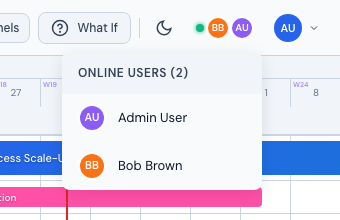
The Online Users indicator in the header shows how many users are currently connected, as a stack of colored avatars next to a green status dot. This uses a WebSocket connection that updates automatically — when someone opens or closes Milestone, the list refreshes in real-time.

Hover the avatar stack to open a dropdown listing every connected user by name:
Presence Tracking
Presence is tracked over your WebSocket connection: joining and leaving is announced the moment you connect or disconnect, with a periodic keepalive ping in between. The Online Users dropdown reflects who is currently connected in your workspace.
Presence is tracked per project, so multiple users can work on different projects simultaneously without interference.
Conflict Detection
Before saving changes (such as moving a phase or updating assignments), Milestone checks for potential conflicts:
- Active editors — If another user is currently editing the same project, you'll see a warning listing who else is editing
- Recent modifications — If the project was modified since you last loaded it, a warning shows who made the last change and when
This prevents two users from unknowingly overwriting each other's work.
Live Change Notifications
When another user modifies a phase, subphase, or assignment, a toast appears in the bottom-right corner via WebSocket. Cascaded changes from the same user are coalesced into a single toast within a short window (e.g. "Bob B. made 2 changes in Bioprocess Scale-Up").
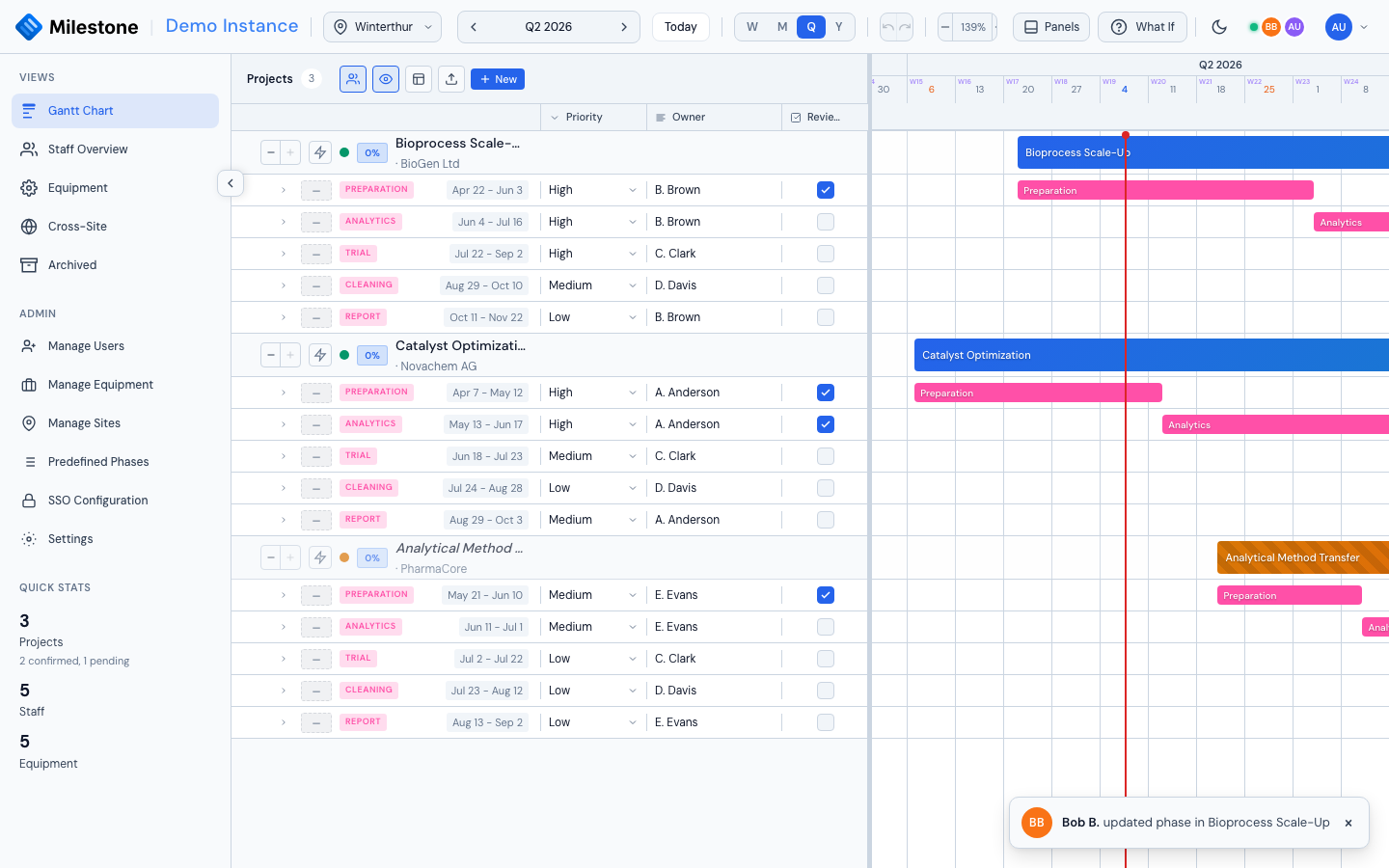
Toasts appear for about 6 seconds before fading. The notification includes the user's avatar, name, and a summary of what changed.
Notifications
The activity feed above is transient and shows what everyone is doing. The notification bell in the header is the opposite: it is personal, it persists, and it keeps an unread count until you read it.
You are notified when someone assigns you to a Kanban card, comments on a card you are assigned to, mentions you with @, or moves one of your cards to another column. You are never notified about your own actions. Clicking a notification opens the card it refers to.
Notifications are stored per user, so they survive a reload or a restart — you will not miss one because a browser tab was closed. See the Kanban Board guide for the full list of triggers.
Due and overdue reminders are worked out in your browser
Reminders for cards due soon or already overdue are derived from the plan you have loaded, rather than being generated on the server. They need no setup, but they only appear while the application is open — there is no email or push notification, and nothing arrives overnight.
WebSocket Connection
The real-time features use a WebSocket connection that:
- Auto-connects when you log in
- Reconnects automatically if the connection drops (with exponential backoff, up to 5 attempts), and tries again straight away when your network comes back or you switch back to the browser tab
- Maintains a keepalive ping every 25 seconds to prevent timeouts
- Gracefully degrades — if WebSocket is unavailable (e.g., behind a restrictive proxy), the app continues to work normally; you just won't see live updates from other users
The connection status is visible in the Online Users indicator: a connected state shows the user count, while a disconnected state shows a fallback icon. While live updates are disconnected, an Offline badge also appears in the header; your own edits keep saving, but colleagues' changes only arrive once the badge is gone.
Live updates now also cover custom-column values and definitions, instance settings (title, weekends) and changes to your own account: if an admin changes your role or sites, it applies without a reload. If your account is deactivated, deleted or demoted, or your password is reset, your session ends at once and you are returned to the login screen.
For security, the server refuses live-update connections opened from other websites.
Note
WebSocket connections require proper proxy configuration. If you're behind nginx or a load balancer, ensure WebSocket upgrade headers are passed through. See the Installation guide for reverse proxy configuration examples.
Best Practices
- Check online users before making major changes — if someone else is editing the same project, coordinate with them
- Pay attention to conflict warnings — they appear before you save and help prevent lost work
- Refresh if needed — if you've been idle for a long time, refresh the page to get the latest data before editing