Multi-Tenant Management
Multi-tenant mode enables SaaS deployment where each organization gets an isolated database. A centralized admin portal at /admin/ manages the entire platform.
Enabling Multi-Tenant Mode
Add these settings to your .env:
# Enable multi-tenant
MULTI_TENANT=true

# Master database (stores tenant registry, admin users, organizations)
MASTER_DB_HOST=localhost
MASTER_DB_PORT=5432
MASTER_DB_NAME=milestone_admin
MASTER_DB_USER=postgres
MASTER_DB_PASSWORD=<master-db-password>

# PostgreSQL admin credentials (for auto-provisioning tenant databases)
# Needs CREATEDB and CREATEROLE privileges
PG_ADMIN_USER=postgres
PG_ADMIN_PASSWORD=<postgres-admin-password>

# Encryption key for tenant database credentials (required!)
# Generate: python -c "import secrets; print(secrets.token_hex(32))"
TENANT_ENCRYPTION_KEY=<64-char-hex-string>
The master database schema is auto-applied on startup by master_db.init_db().
Admin Portal
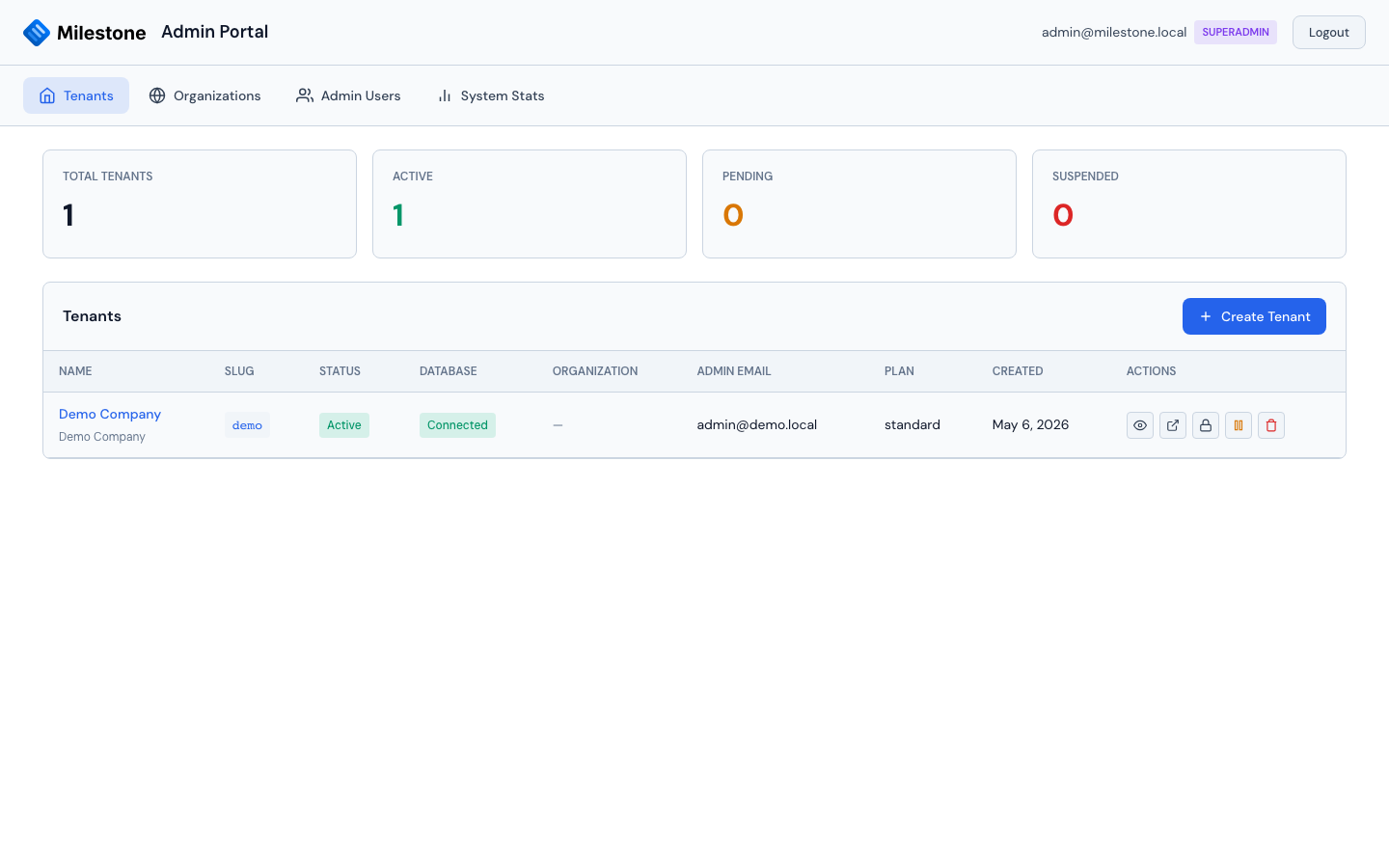
Access the admin portal at /admin/. It has four tabs:
Tenants
Each tenant represents a separate organization with its own isolated database.
| Action | Description |
|---|---|
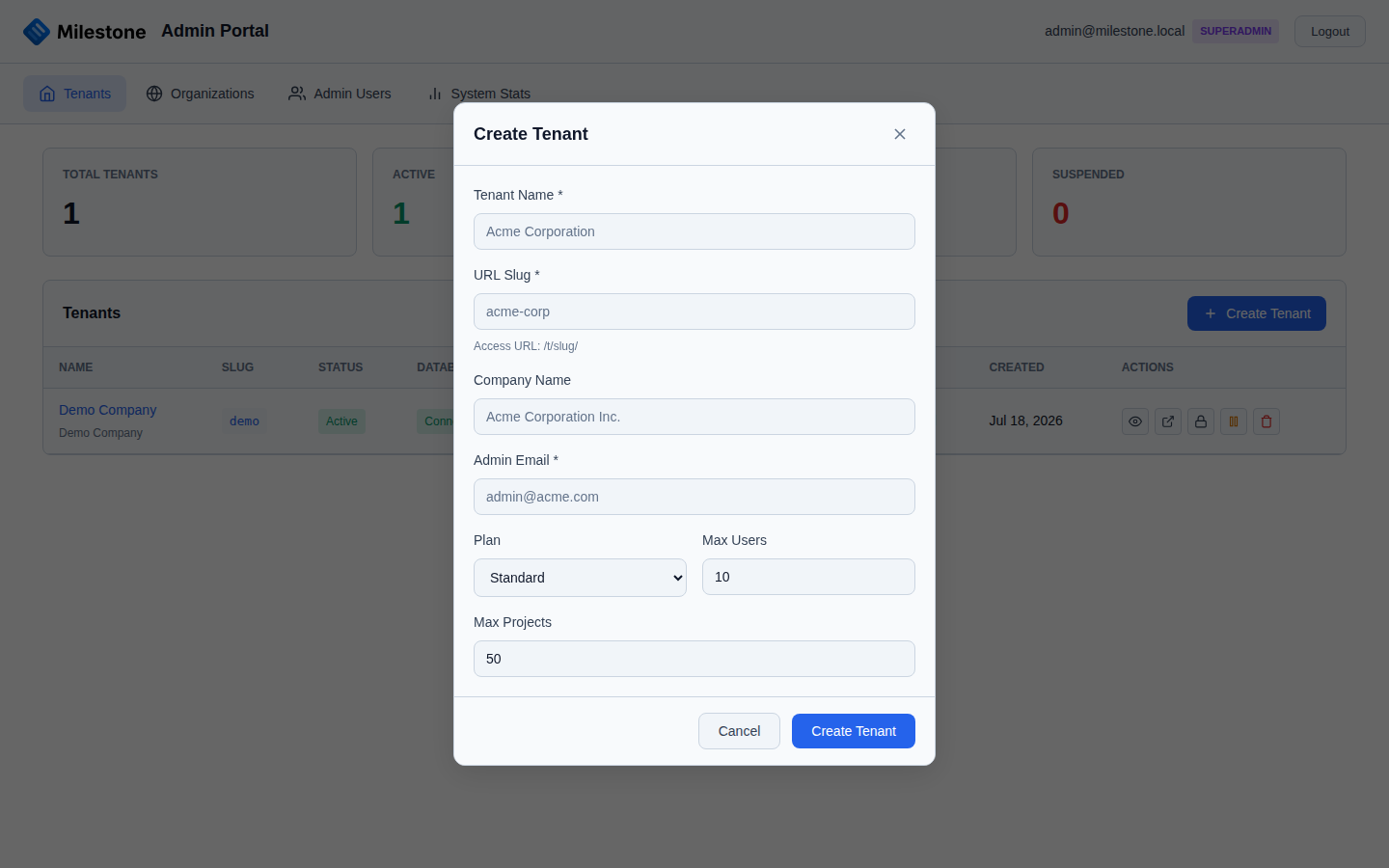
| Create Tenant | Register a tenant (name, slug, admin e-mail, plan, limits); optionally provision it right away with demo data |
| Provision Database | Create the tenant's database, apply the schema and create the admin account — with or without demo data |
| View Details | See tenant metadata, database info, connection status, audit log |
| Show Credentials | Display the generated admin e-mail/password with copy-to-clipboard |
| Reset Admin Password | Generate a new password for the tenant's admin |
| Suspend / Activate / Archive | Change the tenant's status |
| Delete | Remove a suspended tenant and its database (with confirmation) |
Creating a tenant stores its record in the master database with a generated,
AES-256-GCM-encrypted database password and the status pending. Provisioning then:
- Creates a dedicated PostgreSQL user with restricted permissions
- Creates the tenant database (
milestone_<slug>) owned by that user - Applies the full tenant schema
- Seeds the database — either the bare defaults (an initial admin user, a Main Site, the default phase templates and skills) or, with Seed demo data switched on, the sample company described below
- Sets the tenant to
activeand shows the admin password once
Tenants are accessed via URL pattern: /t/{slug}/
Demo data
The Seed demo data switch (in the Create Tenant dialog and in the Provision dialog) fills a new tenant with the same data set as the Codespaces demo tenant and the documentation screenshots: two sites (Winterthur and Frankfurt), nine people with skills and part-time capacity, four projects with phases, nested subphases and dependencies, staff and equipment bookings, equipment blocks, Swiss and German bank holidays, a site closure, absences of every type, tag groups, custom columns, Kanban comments with mentions and notifications. Dates are relative to the day you provision.
- The tenant's admin e-mail becomes the demo's system administrator and signs in with the generated credentials shown after provisioning.
- The sample people (e.g.
[email protected]) are staff to plan with, not accounts: they get a random, discarded password and cannot sign in. To show multi-user features, give one of them a password in Settings → Users. (Only the Codespaces demo tenant usesdemo1234.) - Creating a tenant with the switch on provisions the database right away. If provisioning
fails, the tenant stays
pendingand the Provision Database action offers the switch again.
Organizations
Organizations group related tenants and share SSO configuration.
| Action | Description |
|---|---|
| Create Organization | Set up with name and admin email |
| Assign Tenants | Link tenants to the organization |
| Configure SSO | Set up Microsoft Entra ID for the organization |
| Delete | Remove organization (tenants are unlinked, not deleted) |
Admin Users
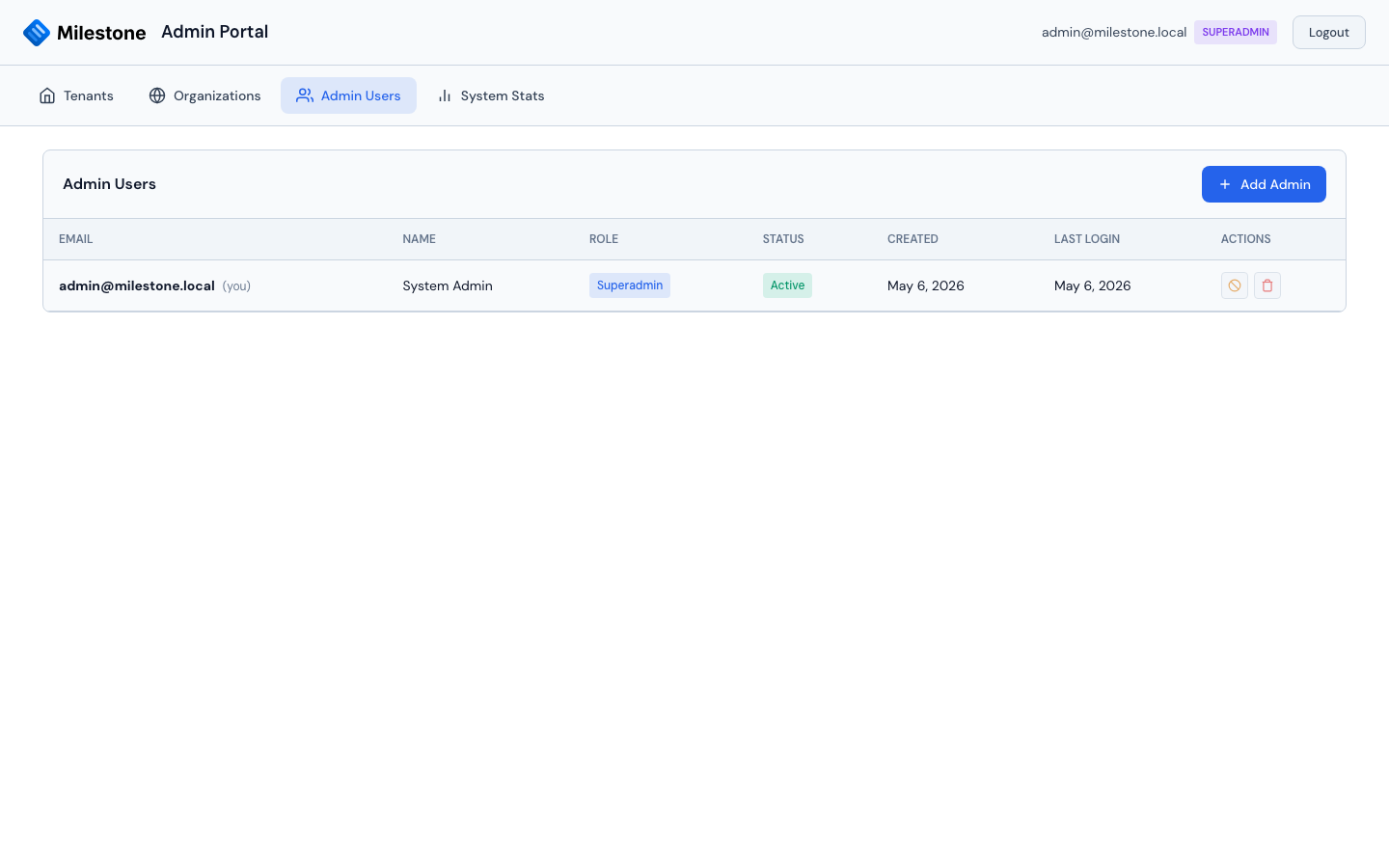
Admin users have access to the admin portal (separate from tenant application users).
| Capability | Admin | Superadmin |
|---|---|---|
| View tenant list | Yes | Yes |
| Create/edit/delete tenants | Yes | Yes |
| Provision tenant databases | Yes | Yes |
| View tenant audit logs | Yes | Yes |
| View organizations | Yes | Yes |
| Configure organization SSO | Yes | Yes |
| Manage admin users | No | Yes |
| View system statistics | Yes | Yes |
- The Admin Users tab is only visible to superadmins
- Regular admins can manage tenants and organizations but cannot create or modify other admin accounts
- Admin roles are validated: only
adminandsuperadminare accepted
Admin-portal sign-in and passwords
- Forced password change. An admin flagged must change password (for example the
auto-created
[email protected]) can sign in and change their password, but every other admin-portal request is refused (403) until they have. This is enforced by the server, not only by the login screen. - Password rules. New and changed admin passwords must be at least 8 characters.
- Password hashing. Admin passwords are stored as PBKDF2-SHA512 with 600 000 iterations
in a self-describing format (
pbkdf2_sha512$600000$<salt>$<hash>). Hashes created by earlier versions (salt:hash, 10 000 iterations) keep working and are upgraded automatically at the admin's next successful sign-in. - Failed-login throttle. After 10 failed sign-ins for the same e-mail from the same IP
address within 15 minutes, further attempts are refused with "Too many failed sign-in
attempts" (HTTP 429) until the oldest failure is 15 minutes old. A successful sign-in
resets the counter, and sign-in takes the same time whether or not the e-mail exists.
The lockout is per IP + e-mail, not per account, so behind a reverse proxy set
FORWARDED_ALLOW_IPS(see Installation). A public IP address is additionally limited to 100 failures per 15 minutes across all e-mails. Workspace (tenant) sign-in is throttled the same way, separately per workspace. The counters live in memory per server process: restarting the app clears them, and with several worker processes each keeps its own count.
System Statistics
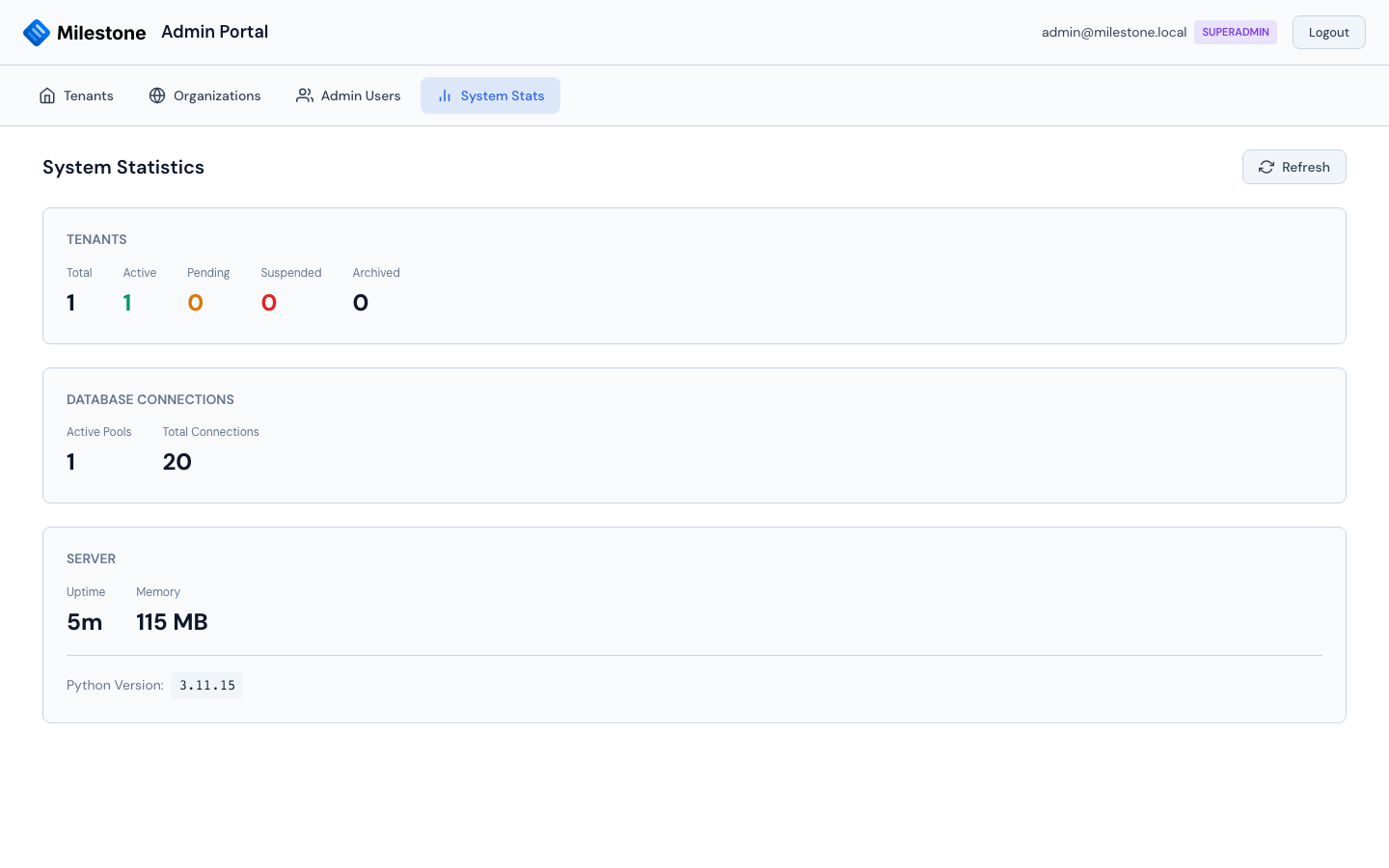
Overview of the platform deployment — tenant counts by status, database connection pools, server uptime/memory, and Python version.
Tenant Database Architecture
┌─────────────────────────────────────────────┐
│             Master Database                 │
│           (milestone_admin)                 │
├─────────────────────────────────────────────┤
│  tenants          → Tenant registry         │
│  admin_users      → Admin portal users      │
│  organizations    → Organization groups     │
│  organization_sso → SSO config per org      │
└─────────────────────────────────────────────┘
         │
         ├──── milestone_acme (tenant DB)
         │     ├── users, projects, phases
         │     ├── staff assignments
         │     ├── equipment, bookings
         │     ├── settings, sites, skills
         │     └── vacations, notes, columns
         │
         ├──── milestone_pharma (tenant DB)
         │     └── (same schema, isolated data)
         │
         └──── milestone_biotech (tenant DB)
               └── (same schema, isolated data)
Key Isolation Guarantees
- Each tenant has a separate PostgreSQL database — no shared tables
- Each tenant database has a dedicated database user with access only to its own database
- Tenant credentials are encrypted at rest with AES-256-GCM
- Tenant resolution is URL-based (
/t/{slug}/api/*) viaTenantMiddleware - Cross-tenant data access is architecturally impossible
Tenant Lifecycle
Creating a Tenant
- Log in to the admin portal at
/admin/ - Click Create Tenant
- Fill in the tenant name, slug (URL-safe identifier) and admin e-mail; switch on Seed demo data for an evaluation tenant (see Demo data)
- Click Provision Database on the new row (skipped when the demo-data switch was on — the tenant is provisioned on creation), choose whether to seed the demo data, and confirm
- Copy the admin credentials from the dialog that opens — the password is shown only once (Reset Admin Password generates a new one later)
Suspending a Tenant
Set the tenant's status to Suspended (or Archived). The tenant's database remains
intact but its workspace URL answers "This organization has been suspended" (or archived)
and users cannot use it. Status values are validated: pending, active, suspended,
archived.
Status changes, edits and deletion take effect immediately on the server process that handled them — the tenant lookup cache entry is dropped and the tenant's connection pool is closed. Other worker processes pick the change up within the 60-second cache window.
Deleting a Tenant
Danger
Deleting a tenant drops the entire database. This action is irreversible.
- Click the delete button on the tenant row
- Confirm the deletion
- The system drops the tenant database and removes the record from the master database
Running Migrations Across Tenants
When schema changes are needed across all tenant databases:
# Run a migration on all tenant databases
python migrations/run_migration.py <migration_name>

# Run a migration on the master database only
python migrations/run_migration_master.py <migration_name>
See Database & Migrations for details.
Connection Pool Management
The TenantManager service manages database connection pools for each active tenant:
- Connection pools are created on-demand when a tenant is first accessed (one at a time per tenant, so a burst of first requests opens a single pool)
- Pools are cached and reused for subsequent requests
- If a workspace's pool cannot be created (credentials missing or unreadable, database
down), its requests get a 503 "Organization database is unavailable" — the server never
falls back to the default
DB_*database - Unknown workspace slugs are cached as misses for 60 seconds, so requests for a non-existent slug do not query the master database each time
- Pool size is configurable via
DB_POOL_SIZEandDB_POOL_MAX_OVERFLOWenvironment variables - Idle connections are reclaimed automatically
Security Considerations
| Area | Implementation |
|---|---|
| Data isolation | Separate PostgreSQL databases per tenant |
| Credential storage | AES-256-GCM encryption for tenant DB credentials and for SSO client secrets (organization and tenant level) |
| Authentication | Session-based with secure cookies; per-tenant user stores; failed-login throttle (10 per 15 min per IP + e-mail); deactivating, deleting or demoting a user ends their sessions and live connections at once |
| Error messages | Health checks and tenant errors never reveal database hosts, users or SQL — details go to the server log |
| Authorization | Role-based (Admin, Superuser, User) within each tenant |
| SSO | Microsoft Entra ID configured per organization, shared across org's tenants |
| Admin access | Separate admin user store in master database |