Organizations & SSO
Organizations
Organizations group related tenants together and provide shared SSO configuration. For example, a company with separate Milestone instances for different departments can share a single Microsoft Entra ID setup.
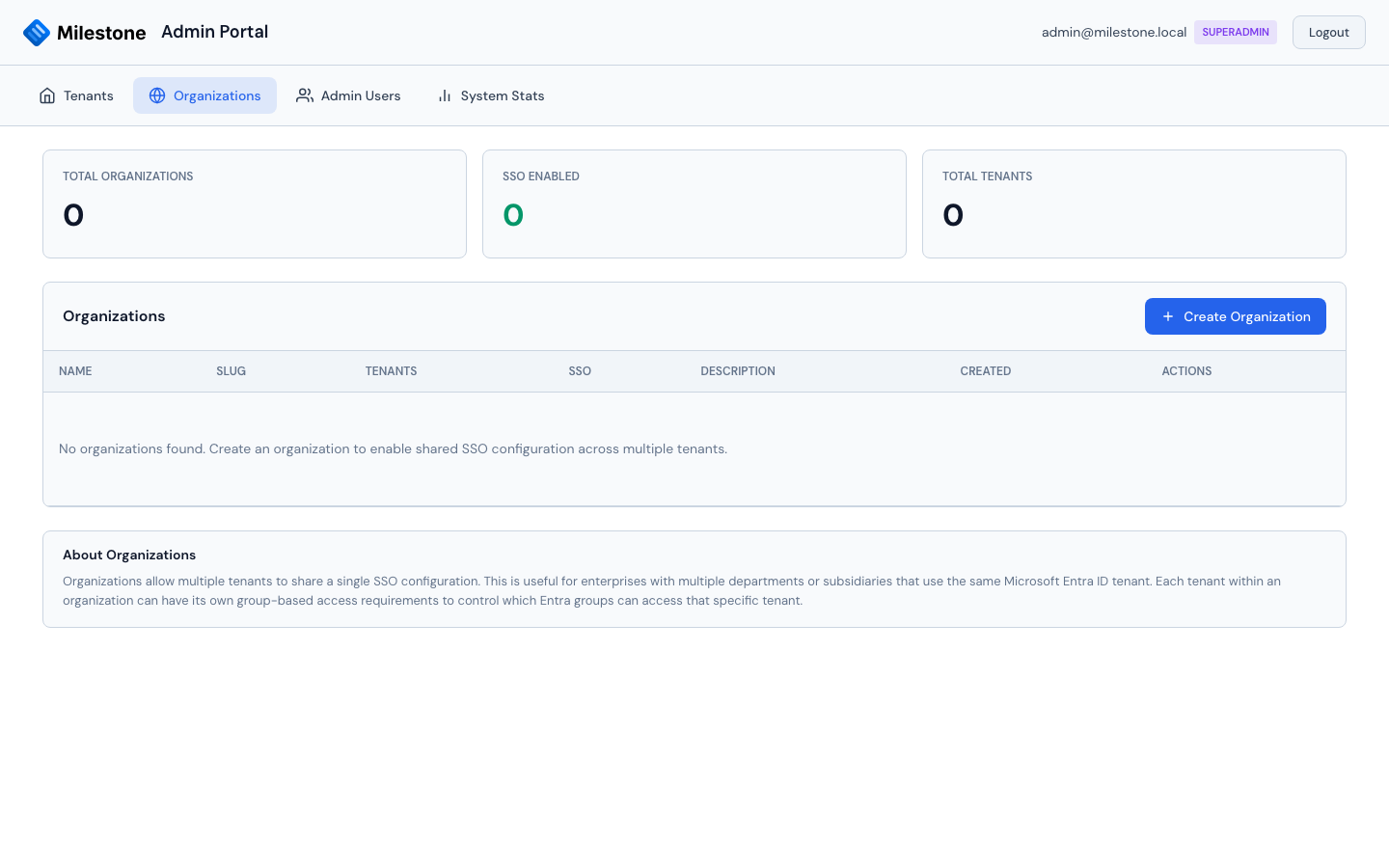
Creating an Organization
- Go to the Organizations tab in the admin portal
- Click Create Organization
- Enter the organization name and admin email
- Click Create
Assigning Tenants
After creating an organization, assign tenants to it:
- Edit the organization
- Select tenants from the dropdown
- Save changes
Tenants inherit the organization's SSO configuration automatically.
Microsoft Entra ID (SSO)
Milestone supports enterprise SSO through Microsoft Entra ID (formerly Azure AD).
Prerequisites
- An Azure AD tenant
- An App Registration in Azure AD
- A client secret for the App Registration
- The redirect URI configured in Azure AD
- Outbound HTTPS access from the Milestone server to
login.microsoftonline.comandgraph.microsoft.com(see Network & Firewall Requirements)
Redirect URI
Milestone uses a single, shared callback URL for all SSO sign-ins:
One redirect URI for the whole organization
Do not add the tenant path (/t/{slug}/...) to the redirect URI. Milestone carries
the tenant through the sign-in flow internally, so this one URL works for every
tenant in the organization. Register it once per App Registration and reuse it — you do
not need a separate redirect URI per tenant.
Use the same value in three places: the Azure App Registration, the Redirect URI
field in Milestone's SSO configuration, and (single-tenant only) SSO_REDIRECT_URI.
They must match exactly.
Azure AD App Registration
- Go to Azure Portal > Azure Active Directory > App Registrations
- Click New Registration
- Set the redirect URI (platform Web) to:
https://your-domain.com/api/auth/sso/callback - Under Certificates & secrets, create a new client secret
- Note the Application (client) ID, Directory (tenant) ID, and the client secret value
Configuring SSO in Milestone
SSO can be configured at two scopes:
Per-Organization (Multi-Tenant):
- In the admin portal, go to the Organizations tab
- Click the SSO configure button on the organization
- Enter:
- Client ID — Application (client) ID from Azure
- Tenant ID — Directory (tenant) ID from Azure
- Client Secret — The secret value
- Redirect URI —
https://your-domain.com/api/auth/sso/callback(the shared URL above) - Save configuration
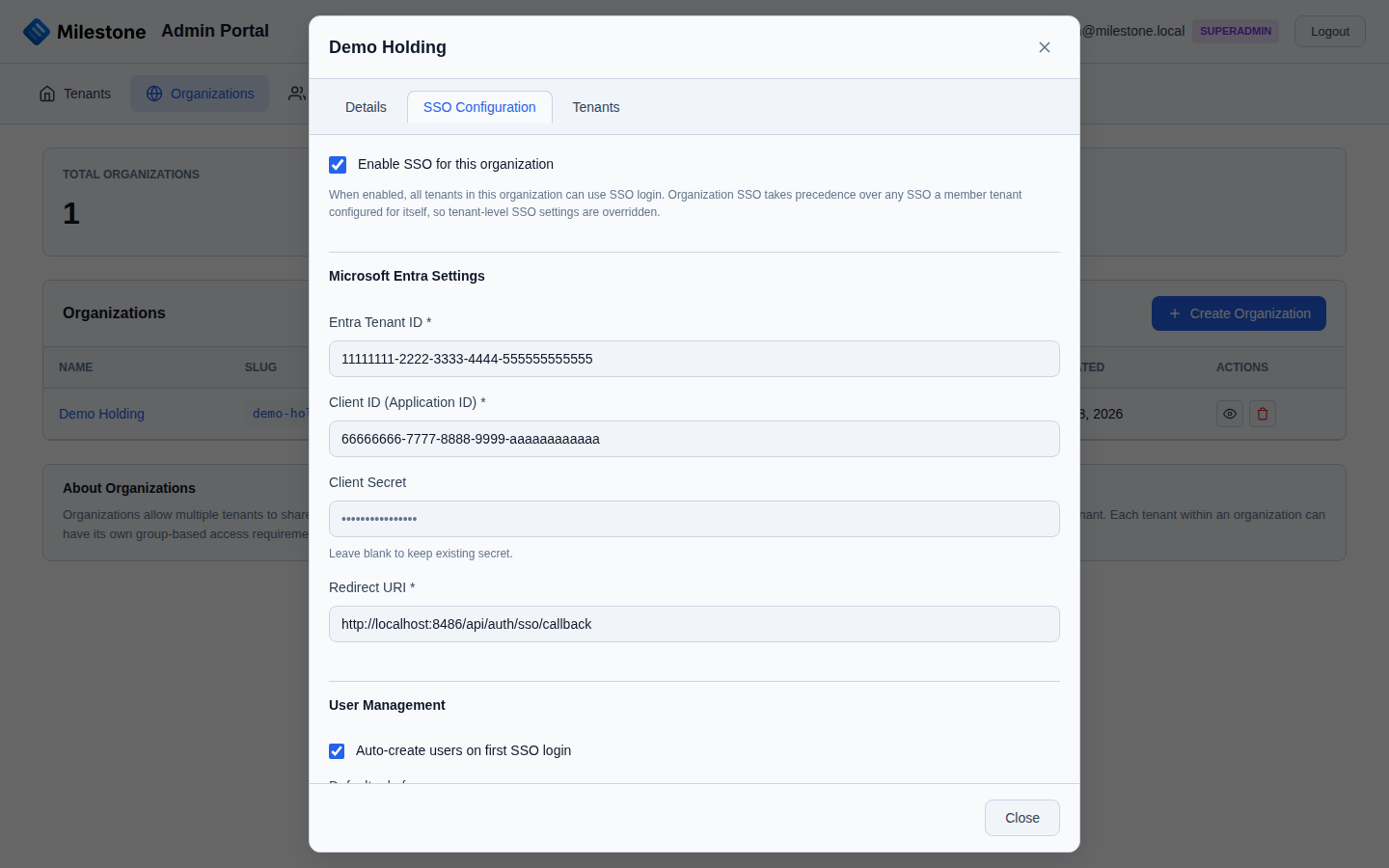
All tenants in the organization share this SSO setup.
Per-Tenant (Multi-Tenant):
A tenant that does not belong to an organization can configure its own SSO from the Settings → SSO section inside the application (admin only), using the same fields and the same shared redirect URI.
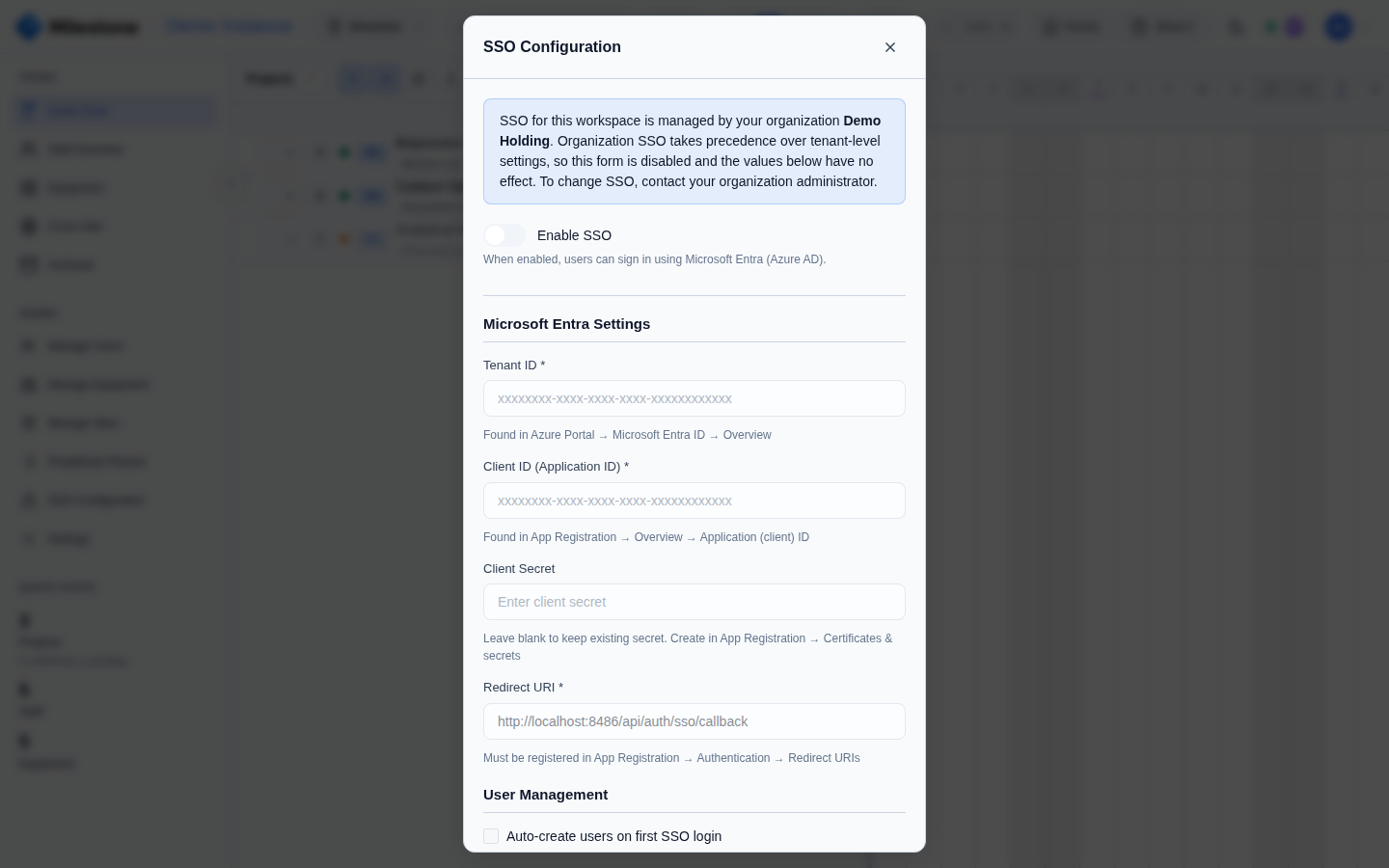
Organization SSO takes precedence
If a tenant belongs to an organization that has SSO enabled, the organization's configuration always applies and the tenant-level SSO form is shown read-only — a per-tenant configuration would be ignored. To configure SSO per tenant, remove the tenant from the organization (or disable the organization's SSO).
Per-Instance (Single-Tenant):
Configure SSO in Settings → SSO within the application, or set environment variables:
SSO_ENABLED=true
SSO_CLIENT_ID=your-azure-app-client-id
SSO_CLIENT_SECRET=your-azure-app-client-secret
SSO_TENANT_ID=your-azure-tenant-id
SSO_REDIRECT_URI=https://your-domain.com/api/auth/sso/callback
SSO Login Flow
- User clicks Sign in with Microsoft on the login screen
- Milestone sets a short-lived, one-time
sso_noncecookie (HttpOnly, 10 minutes) and redirects to Microsoft's login page with a signedstatethat carries the same nonce - After authentication, Microsoft redirects back to Milestone with an authorization code
- Milestone checks that the
stateis validly signed and that its nonce matches this browser'ssso_noncecookie, then clears the cookie — whatever the outcome - Milestone exchanges the code for tokens and creates/updates the user session
- If the user doesn't exist in Milestone, their account is automatically created (when auto-create users is on)
Because of the nonce check, a sign-in only completes in the browser that started it, a callback link cannot be reused, and a sign-in left open for more than 10 minutes must be restarted. Those cases show "Your sign-in session expired or was started elsewhere. Please try again." on the sign-in page. Browsers or privacy tools that block first-party cookies on the redirect back from Microsoft cause the same message every time.
Client secret storage
Client secrets are encrypted at rest (AES-256-GCM) at both scopes:
- Organization SSO — stored in the master database, encrypted with
TENANT_ENCRYPTION_KEY. - Tenant-level SSO (Settings → SSO) — stored in the tenant database's
sso_configtable, encrypted with the same key; in single-tenant mode the key is derived fromSESSION_SECRET. Secrets saved by versions before 1.5.0 were stored in plain text and are encrypted automatically the next time the workspace's database is opened after the upgrade.
The settings screens and GET /api/sso/config/full only ever return the masked form
(**** plus the last four characters). Saving the form with the masked value unchanged keeps
the stored secret; typing a new value replaces it; clearing the field removes it. This holds
on every SSO save route.
Rotating SESSION_SECRET (single-tenant) or TENANT_ENCRYPTION_KEY
The stored secret can only be decrypted with the key it was encrypted with. After
changing SESSION_SECRET on a single-tenant installation (or TENANT_ENCRYPTION_KEY on
a multi-tenant one), the server logs "Could not decrypt the tenant SSO client secret"
once and SSO reports not configured — re-enter the client secret in
Settings → SSO. Changing TENANT_ENCRYPTION_KEY also makes existing tenant database
credentials unreadable, so only do it with a re-encryption plan.
Testing SSO
After saving the configuration, verify it end to end: open a tenant's login page and click
Sign in with Microsoft. You should be redirected to Microsoft, and after signing in,
returned to that tenant's workspace. If sign-in fails on the return trip, you are sent back
to that tenant's own sign-in page with the reason shown above the form — start there. The
most common cause is a redirect-URI mismatch — confirm the App Registration, Milestone's
Redirect URI field, and (single-tenant) SSO_REDIRECT_URI all read exactly
https://your-domain.com/api/auth/sso/callback. The server log carries the underlying
Microsoft error for every failure.
Test configuration
The organization's SSO Configuration tab has a Test configuration button. It tests the saved configuration, so save your changes first.
The test signs in as the application itself, which checks:
- the Directory (tenant) ID, Application (client) ID and client secret look right and, where a secret was pasted from the wrong column, that it is not the Secret ID;
- the redirect URI is an absolute
https://URL ending in/api/auth/sso/callbackwith no/t/{slug}/path; - Microsoft recognises the directory, and accepts the client ID and secret;
- how the server reaches the internet — whether a proxy is configured, and whether any proxy setting is one that sign-in does not use (see below).
What it cannot check is the redirect URI's registration, because signing in as the application never uses one. A green result therefore reads "Microsoft accepted the credentials", not "SSO works", and the last row always asks you to confirm the platform by hand — see the warning below. If the test cannot reach Microsoft at all it says so, rather than blaming the credentials.
Troubleshooting sign-in failures
When a sign-in fails, the message above the sign-in form names Microsoft's error code. Look it up here.
Check the platform first: Web, not Single-page application
This is the one failure that looks like a working configuration. Microsoft issues the authorization code normally — the redirect URI is registered — and then refuses to exchange it, because a URI registered under the Single-page application platform can only be redeemed from a browser, never from a server holding a client secret.
One App Registration can hold both platforms, so a workspace-level sign-in using a
/t/{slug}/… URI registered under Web keeps working while the shared organization URI
added under SPA fails. In the Azure portal: App registrations → your app →
Authentication, check which platform card lists
https://your-domain.com/api/auth/sso/callback. Under Manifest, its replyUrlsWithType
entry must read "type": "Web". If it reads "Spa", delete it from the Single-page
application platform and add the same URI under Web.
The secret Value, not the Secret ID
Azure shows a client secret's Value and its Secret ID side by side, and only the Value
works. A secret that looks like a GUID (0a1b2c3d-…) is the Secret ID.
| Code | What it means | What to do |
|---|---|---|
AADSTS9002327, AADSTS9002325 |
The redirect URI is registered as a single-page application | Re-register it under the Web platform (see above) |
AADSTS9002326 |
An Origin header reached a Web-registered URI |
A forward proxy is injecting Origin on the server's outbound requests |
AADSTS7000215 |
The client secret is not valid | Re-enter the secret's Value; check for truncation and trailing whitespace |
AADSTS7000222 |
The client secret has expired | Create a new secret under Certificates & secrets and save its Value |
AADSTS7000218 |
No client secret reached Microsoft | The stored secret is empty or could not be decrypted — re-enter it |
AADSTS50011 |
The redirect URI does not match the registration | Since Microsoft would not have issued a code for an unregistered URI, this usually means the redemption used a different SSO configuration than the sign-in — check the server log, which records the configuration used on both steps |
AADSTS54005, AADSTS70008 |
The sign-in link was already used or expired | Sign in again. If it happens every time, look for a link prefetcher or a retrying proxy in front of the callback URL |
AADSTS700016 |
The client ID is not in that directory | Check the Application (client) ID and Directory (tenant) ID belong to the same App Registration |
AADSTS65001 |
Consent has not been granted | Grant admin consent for User.Read (and GroupMember.Read.All if group access is in use) under API permissions |
AADSTS90002, AADSTS900023 |
The directory could not be found | The Directory (tenant) ID is wrong or malformed — copy it from the App Registration's Overview |
Some messages come from Milestone rather than Microsoft:
-
"Your sign-in session expired or was started elsewhere. Please try again." — the browser-binding check failed: the sign-in took longer than 10 minutes, was finished in a different browser or profile, the callback link was opened twice, or the
sso_noncecookie was blocked (see SSO Login Flow). -
"SSO client secret is not configured" — the configuration in effect has no client secret. Save one; a configuration without a secret can never complete a sign-in.
- "Single sign-on is temporarily unavailable" — the organization's configuration could not
be read, usually a master-database problem or a changed
TENANT_ENCRYPTION_KEY. Milestone deliberately stops here rather than continuing with the workspace's own settings, which would fail against Microsoft with an unrelated-looking error. - "The identity provider did not respond as expected (HTTP …)" — something answered, but
without the
AADSTScode Microsoft always includes. Usually a proxy or gateway intercepting requests tologin.microsoftonline.comfrom the server and returning a block page. A fault at Microsoft looks the same, so check the Outbound network row of the SSO test, and whether the server is allowed to reachlogin.microsoftonline.comdirectly. - "Could not reach the identity provider" — the request never got a reply at all: outbound
access to
login.microsoftonline.comis blocked, or a configured proxy is unreachable.
Compare a working environment against the failing one
When the same version works in one environment and not another, the message tells you which half to look at. The same message in both points at the App Registration, which they share. A message in only one points at that environment — its network, or its own SSO configuration.
What sign-in uses to reach Microsoft
Sign-in requests use HTTPS_PROXY / HTTP_PROXY from the environment, or connect directly when
neither is set. They do not use PROXY_PAC_URL, PROXY_CA_CERT, PROXY_USERNAME or
PROXY_PASSWORD — those apply only to the public-holiday import. A deployment that describes its
proxy solely through those settings has not described it to sign-in, and Microsoft will be
unreachable even though holiday import works. The Outbound network row of the SSO test reports
exactly this.
Group-Based Access Control
Restrict tenant access to users who belong to specific Microsoft Entra ID (Azure AD) security groups.
How It Works
- In the admin portal, edit a tenant
- Under Group Restrictions, add one or more Azure AD Group IDs (GUIDs from your Entra directory)
- Choose the membership mode:
- Any (default) — User must belong to at least one of the listed groups
- All — User must belong to every listed group
- Save the tenant configuration
When a user logs in via SSO, Milestone fetches their group memberships from the Microsoft Graph API and validates them against the tenant's requirements. If the user doesn't meet the group criteria, access is denied.
Grant GroupMember.Read.All first
Reading group memberships requires the GroupMember.Read.All (or Directory.Read.All) Microsoft Graph permission on the App Registration, with admin consent granted. Without it the group lookup fails for every user, and sign-in reports "Could not verify group membership. Contact administrator." Add the permission under API permissions > Add a permission > Microsoft Graph > Delegated permissions, then click Grant admin consent. Leave the group list empty if you don't need group-based restrictions — the lookup is then skipped entirely.
Finding Azure AD Group IDs
- Go to Azure Portal > Azure Active Directory > Groups
- Click on the group you want to use
- Copy the Object ID (a GUID like
a1b2c3d4-e5f6-7890-abcd-ef1234567890)
Use Cases
- Department isolation — Only R&D department members can access the R&D tenant
- Project-based access — Create an Azure AD group per project team and restrict the tenant accordingly
- Compliance — Ensure only authorized personnel can access sensitive project data
Note
Group-based access control requires SSO to be configured. It has no effect on local (email/password) authentication.