Staff Management
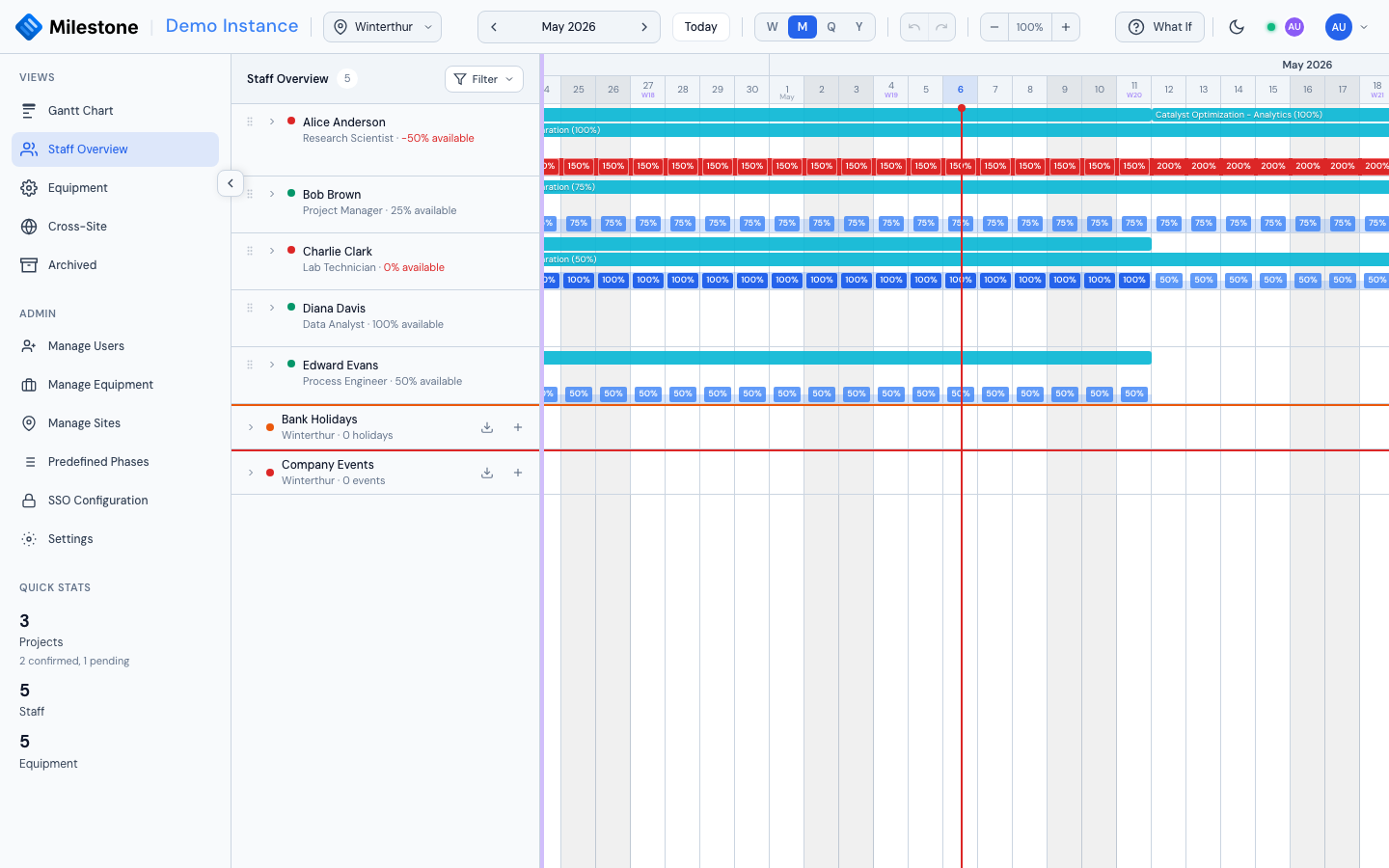
The Staff Overview provides a timeline view centered on people rather than projects. It shows each staff member's assignments, availability, and time off.
Tip
Admins, superusers and project managers can dock the Staff Overview directly below the Gantt chart via the Panels button — see Resource Panels.
Staff List Panel
The left panel shows all staff members with:
- Status indicator: Green (available) or Red (overallocated)
- Part-time badge: Shows maximum capacity if less than 100%
- Role and allocation: Job title and current total allocation percentage
- Drag handle: Admins, superusers and project managers can drag staff onto the Gantt timeline to create assignments; everyone else can drag their own card (see Adding Yourself to a Project)
Click the arrow to expand a staff member and see their absences (with each absence's type), recurring absences, and current project assignments. Users with the plain User role see the absences of colleagues who share a site with them, not of everyone in the workspace (see Who Sees Whose Absences).
Staff Timeline
The right side shows a horizontal timeline with:
- Assignment bars — Colored by project, stacked when overlapping
- Absence blocks — Drawn in the color of their absence type. Only types that count as unavailable reduce capacity; a Home Office day is shown but leaves the person available
- Workload indicator — Thin bar showing total utilization level
- Site closures — Company events marked as closures make the staff of their sites unavailable; see below
- Bank holidays and company events — Expandable rows at the bottom. Admins and superusers can click an entry to edit it, or + to add one, in Settings; changes appear for other users straight away
Site Closures in the Workload
A company event marked as a site closure takes everyone on the event's sites out of the plan for its dates:
- their workload cells show 0% available, colored with the event's color, and the tooltip reads Site closed: <event name>
- if they have work assigned on those days, the cell is flagged as a conflict (Conflict: N% assigned during site closure), just like work booked during an unavailable absence
- today's availability in the staff list and on the resource cards shows them as unavailable while the closure lasts
Someone who belongs to several sites is unavailable as soon as one of their sites is closed. Bank holidays and plain company events are shown on the timeline but do not reduce capacity.
Assigning Staff
Admins and superusers can assign anyone to any project — at every site; sites decide what the Gantt shows, not which projects a superuser may change. The project manager of a project can do the same on that project. Everyone else can add themselves.
New assignments (drag-and-drop, Assign Staff, Assign me) can't be created while What-If mode is active; existing ones can still be edited, moved and removed there. What-If is entered from the Gantt chart, and the Staff Overview itself is not reachable while a plan is open.
Method 1: Drag & Drop
- Grab a staff member by the drag handle in the Staff Overview or the resource panel
- Drag them onto a project/phase/subphase bar on the Gantt timeline
- A five-day assignment at the person's maximum capacity is created where you drop it — adjust its dates or allocation afterwards
Method 2: Context Menu
- Right-click on a project, phase, or subphase in the Gantt chart
- Select Assign Staff
- The Staff Assignment Modal opens
Assignment Modal
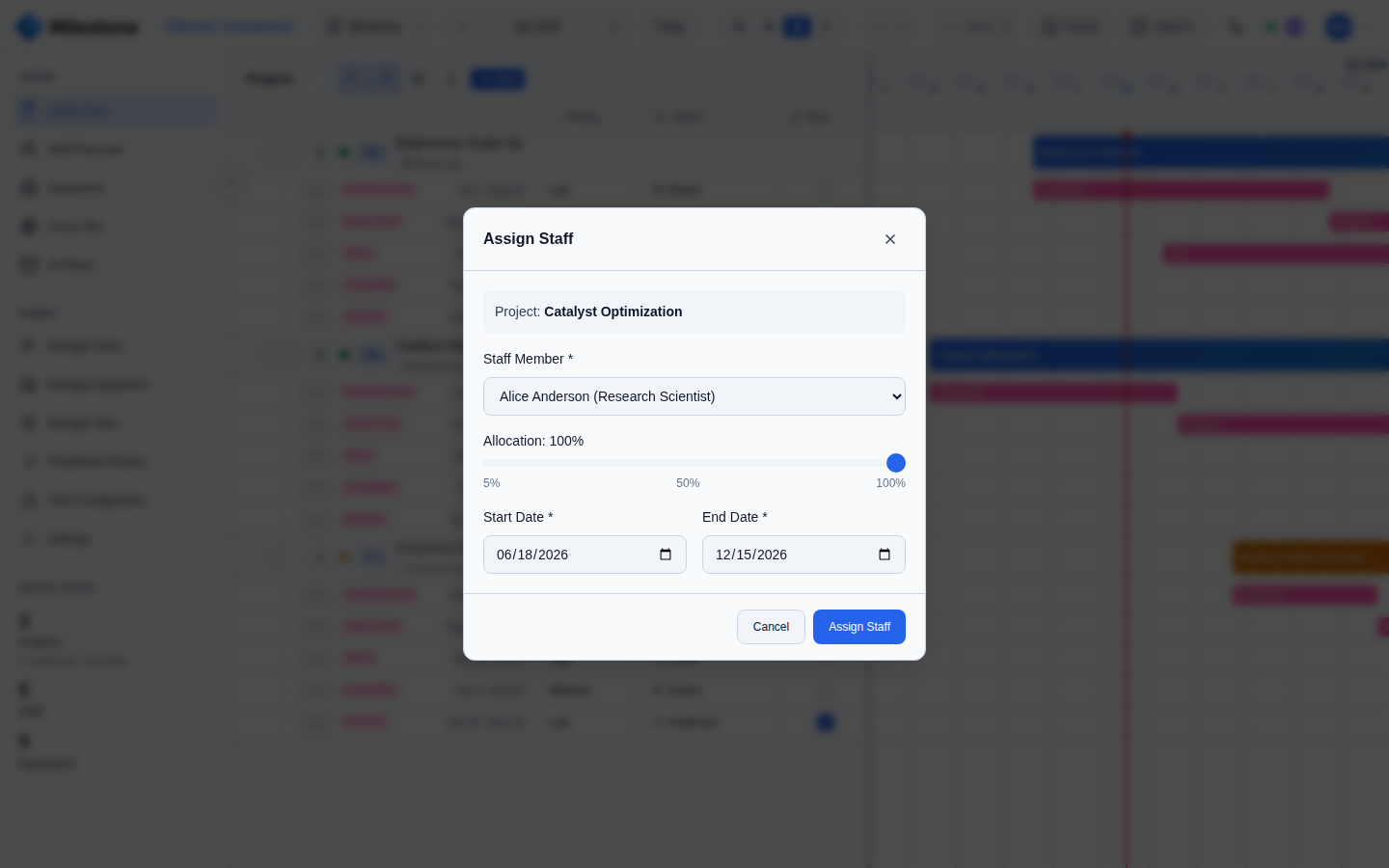
- Select a staff member from the dropdown
- Set allocation percentage (5–100% in 5% increments). The server accepts any whole number from 1 to 100 for a single assignment and rejects 0 or more than 100; over-allocation comes from several overlapping assignments
- An assignment whose end date is before its start date is rejected
- A warning appears if the assignment would exceed capacity
- Phase/subphase assignments inherit dates automatically
- Project-level assignments allow custom start/end dates
Adding Yourself to a Project
Anyone — including users with the plain User role — can book their own time on a project, change it and withdraw it again, without being able to assign other people:
- Right-click a project, phase or subphase in the Gantt chart and choose Assign me. You are booked at your own maximum capacity for the item's dates. The entry reads Assigned to me (greyed out) once you are on it
- Drag your own card from the Staff Overview or the resource panel onto a project, phase or subphase bar — this creates a five-day assignment at your maximum capacity where you drop it (in quarter and year views, starting at the day under the pointer). Only your own card can be dragged
- On the Kanban board, open a card and click Join this card
- On your own assignment row you can change the allocation with the slider, move or resize your own assignment bar, and remove the assignment. Edit Assignment in its right-click menu opens the assignment dialog with the staff member fixed to You
Assigning or editing someone else still needs a superuser or the project's manager.
Filtering Staff
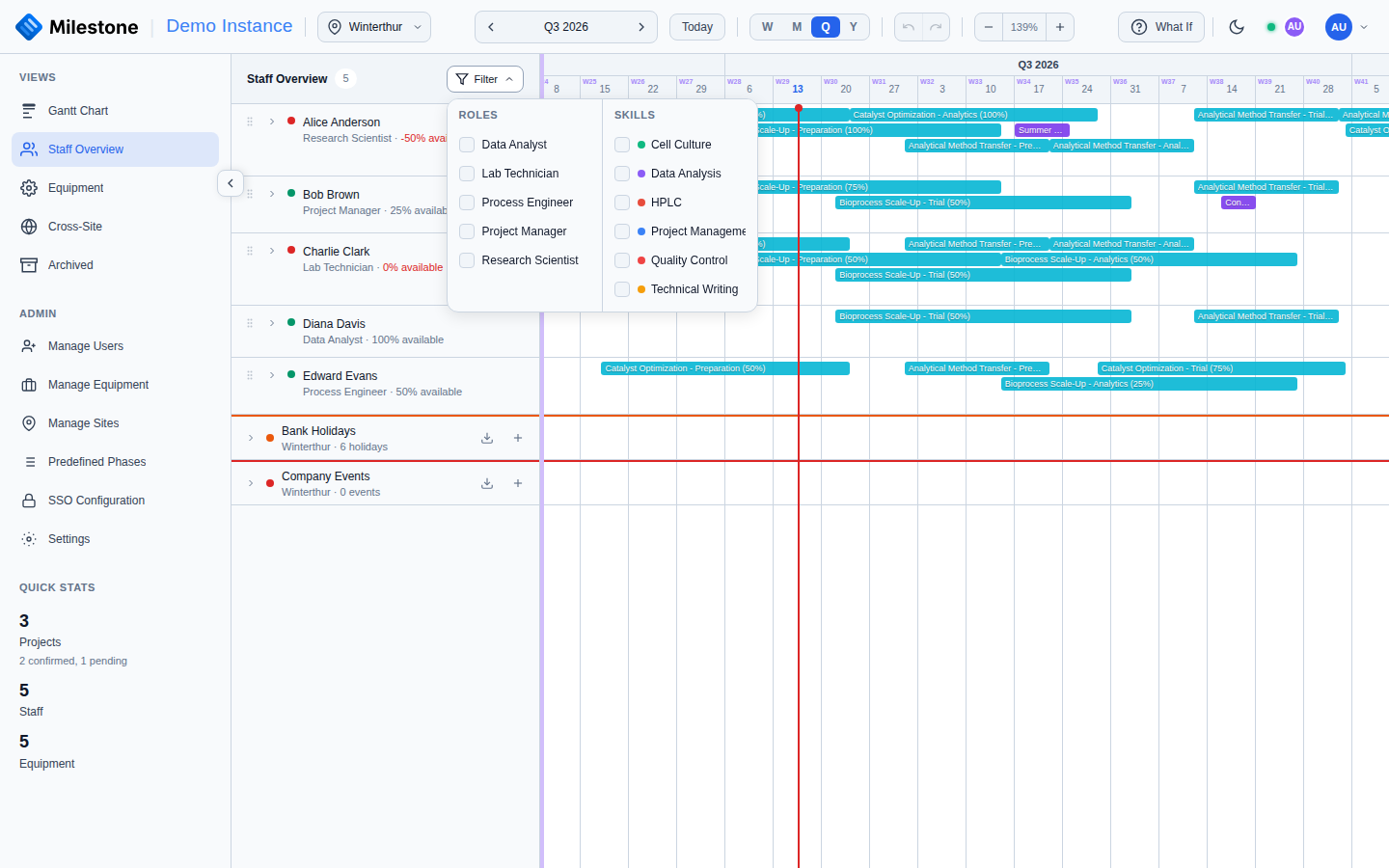
Click the Filter dropdown to filter by:
- Role — Multi-select checkboxes (e.g., Research Scientist, Lab Technician)
- Skills — Multi-select with colored dots matching each skill's color
- Clear All — Reset all filters
The header shows filtered/total count (e.g., "12/20 staff") when filters are active.
Staff Notes
Staff notes are short, date-pinned annotations attached to a site — for example "Covering weekend shift for stability study sampling" — optionally linked to a specific staff member. They are useful for recording scheduling context that doesn't belong in an assignment or vacation entry.
Notes are currently managed through the API (GET /api/notes to list; creating and deleting require superuser or admin rights) and are included in the Staff notes sheet of the full site Excel export, so they travel with the rest of your site's data in backups and migrations. A dedicated notes UI is not available yet.